

Kas yra el. pašto aliasas?
El. pašto aliasas (iš anglų k. „alias“ — pseudonimas) yra būdas sukurti papildomus el. pašto adresus esamai pašto dėžutei.
Visi laiškai, išsiųsti į aliaso adresus, patenka į jūsų pagrindinę pašto dėžutę.
Kodėl naudoti aliasą?
Aliasas naudingas, kai nenorite nurodyti savo tikrojo el. pašto adreso.
Pavyzdžiui:
Pagrindinis adresas: janis.berzins@inbox.vg
Aliasas: j.reklama@inbox.vg
Jei nenorite, kad jūsų tikrasis el. pašto adresas būtų viešai matomas internete (pvz., registruojantis svetainėse ar talpinant skelbimus), galite naudoti aliasą.
Visi laiškai, išsiųsti į j.reklama@inbox.vg, pateks į jūsų pašto dėžutę janis.berzins@inbox.vg, o siuntėjas nesužinos jūsų tikrojo adreso.
Svarbu žinoti
- Aliaso galiojimas neribotas arba iki pagrindinės pašto dėžutės ištrynimo
- Aliasą galima ištrinti bet kuriuo metu
- Po ištrynimo laiškai nebeateis
- Aliasams galima taikyti filtrus
- Aliaso negalima naudoti prisijungimui
- Prisijungimui naudokite savo vartotojo vardą ir slaptažodį
- Galite siųsti ir atsakyti į laiškus naudodami aliasą
- Maksimalus kiekis: 1 aliasas vienai pašto dėžutei
Kada aliasas naudingas?
- Ilgiems ar sunkiai įsimenamiems adresams (pvz., jb@inbox.vg)
- Apsaugai nuo šlamšto — galite ištrinti aliasą ir sukurti naują
- Domeno pašto naudotojams — adresams kurti, pvz., info@, support@, webmaster@ ir kt.
Visi laiškai bus surenkami vienoje pagrindinėje pašto dėžutėje.
Kaip sukurti aliasą
- Eikite į pašto dėžutės nustatymus
- Atidarykite skiltį „Persiuntimas ir aliasai“
- Pasirinkite „El. pašto aliasai“ → spauskite „Pridėti“
- Įveskite aliaso pavadinimą (be domeno)
- Išsaugokite
Aliasas pradės veikti iš karto po sukūrimo.
Kaip ištrinti aliasą
- Eikite į pašto dėžutės nustatymus
- Atidarykite skiltį „Persiuntimas ir aliasai“
- Pasirinkite „El. pašto aliasai“
- Spauskite „Ištrinti“ šalia norimo aliaso
Jei persigalvosite, spauskite „Atkurti“ ir aliasas vėl veiks kaip anksčiau.
Slapukų ir Cache išvalymas naršyklėje padeda išvengti arba pašalinti tinklalapio dizaino ar funkcionalumo klaidų. Jeigu Cache nėra išvalyta, naršyklė naudoja seną informaciją vietoje naujos, todėl atsiranda klaidos. Slapukų ir Cache išvalymas padeda išvengti netikslumų.
Kartais būtina išvalyti Cache daugiau nei vieną kartą.
Google Chrome 38.0
- Pasirinkite piktogramą Tools
 ,
, - Spauskite Settings,

- Pasirinkite Show advanced settings,

- Skyriuje Privacy rinkitės Clear browsing data,

- Pažymėkite šiuos laukelius:
Empty the cache
Delete cookies and other site and plug-in data

- Spauskite Clear browsing data,
- Uždarykite ir perkraukite savo kompiuterį.
Mozilla Firefox 33.0
- Pasirinkite piktogramą Tools
 ir spauskite History,

- Rinkitės Clear Recent History,

- Iškrentančiame meniu Time range to clear" pasirinkite Everything,
- Šalia Details eilutės
- Pasirinkite ir pažymėkite šiuos langelius:
Cookies
Cache
Active Logins

- Spauskite Clear Now,
- Uždarykite ir perkraukite savo kompiuterį.
Internet Explorer 11
- Atidarykite Tools
 ir pasirinkite Internet Options,

- Po Browsing history rinkitės Delete,

- Pasirinkite ir pažymėkite šiuos langelius:
Temporary Internet files and web site files
Cookies and web site data

- Spauskite Delete,
- Spauskite OK,
- Uždarykite ir perkraukite savo naršyklę.
Jeigu naudojate kitą naršyklę ir kitą jos versiją, čia galite rasti daugiau naudingos informacijos dėl Cache išvalymo.
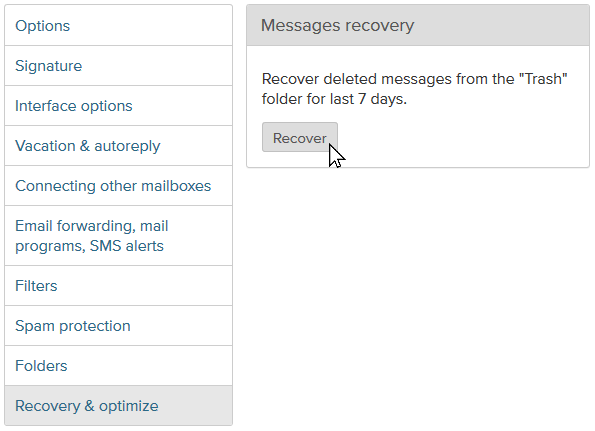
Ši parinktis leidžia atstatyti ištrintas žinutes iš katalogo Šiukšlės per pastarąsias 7 dienas. Dėmesio!Paspaudę Atstatyti, palaukite bent 15 minučių, kol visi anksčiau ištrinti laiškai bus atstatyti. Atstatyti laiškai bus patalpinti atgal į katalogą Šiukšlės.
Norėdami atstatyti ištrintas žinutes iš katalogo Šiukšlės:
- Prisijunkite prie pašto dėžutės;
- Atidarykite skyrių Nustatymai;
- Kairėje meniu juostoje pasirinkite Atstatymas & optimizavimas;
- Norėdami baigti veiksmą, spauskite Atstatyti.
Prašome pasirinkti naršyklę:
Mozilla Firefox (rekomenduojama)
Google Chrome
Ms Edge
Safari (iOs/MacOS)
Mypal (Windows XP & Vista) - install can here (ZIP version - 78.0.v)
Mes nepalaikome:
- Internet Explorer
- Firefox 67
- Google Chrome 60
- Safari 11
- Egde 18
Problemos atnaujinant naršyklę:
Jeigu naudojantis kompiuteriu Jums neleidžiama įdiegti arba atnaujinti naršyklės, prašome kreiptis į kompiuterių sistemos administratorių.
Negaliu atnaujinti naudojamos naršyklės?
Jeigu negalite naudoti siūlomos interneto naršyklės (pvz. dėl naudojamos specialios naršyklės programos), galite įdiegti antrą naršyklę iš mūsų siūlomo sąrašo.
Gavę naują žinutę, galite nustatyti filtrus žinutės skaitymo lange. Norėdami tai atlikti:
- Atidarykite žinutę;
- Spustelėkite siuntėjo vardą;
- Iškrentančiame meniu pasirinkite „Sukurti filtrą“.
Jūs būsite perkelti į skyrių „Nustatymai“, kur galėsite baigti nustatymus pasirinkdami konkretų filtrą siuntėjui.
Daugiau informacijos apie filtrus – čia.
